Application settings
This section provides comprehensive information about the array of available application settings within TruCap+. These settings grant users the flexibility to tailor the data extraction process to align with specific requirements. This documentation outlines the significance of these settings and how to access them through the TruCap+ interface.
These settings encompass a variety of parameters that influence how data is processed, captured, and managed within the application. These settings can be accessed from the main menu under the Application Setup > Application Settings option.
Application-level settings
 Application
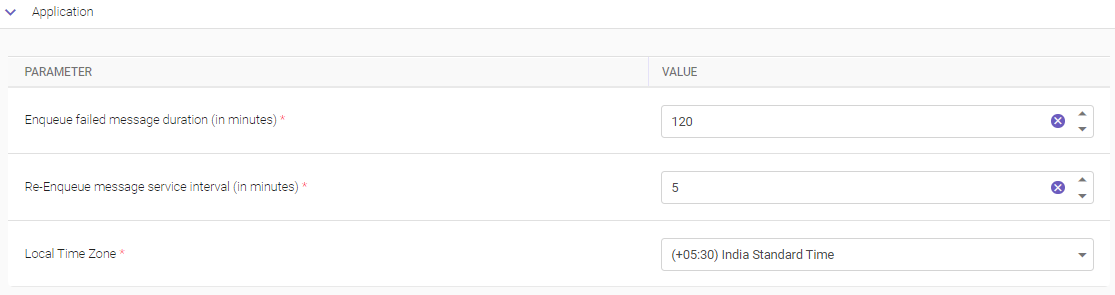
The application settings enable configuring enqueue and re-enqueue message services to ensure reliable and efficient message processing within TruCap+. These settings collectively enhance the reliability and effectiveness of message processing in the application.
|
PARAMETER |
DESCRIPTION |
|---|---|
|
Enque failed message duration (in minutes)* |
Enter the duration (in minutes) for which enqueued messages are stored. Note
|
|
Re-enque message service interval (in minutes)* |
Specify the time interval (in minutes) for the re-enqueue message service to operate. This interval controls how frequently the re-enqueue process checks and processes messages. |
|
Local time zone* |
Choose the local time zone from the drop-down list. This ensures that all time-related operations within the enqueue and re-enqueue processes are synchronized with the selected time zone. |
|
* Mandatory fields |
|
Archive and purge
The archive and purge settings serves as a scheduling tool, enabling administrators to control when archiving and purging activities take place. By specifying a particular time for execution, organizations can ensure that these resource-intensive processes occur during off-peak hours or when system activity is minimal.

|
PARAMETER |
DESCRIPTION |
|---|---|
|
Execution time for Archiving and purging* |
Indicates the time at which archiving and purging processes should be executed. Use the drop-down to select the time of execution. |
|
* Mandatory field |
|
Cache setting
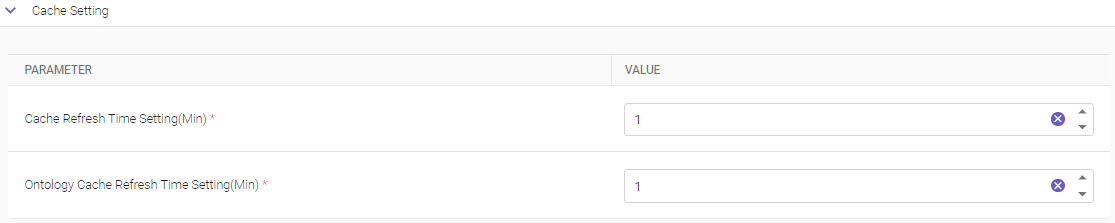
The cache setting enables you the capability to customize the intervals at which cached data related to lists and ontologies are refreshed from the database.
|
PARAMETER |
DESCRIPTION |
|---|---|
|
Cache Refresh Time Setting (Min)* |
Enter the desired time interval in minutes for refreshing cached data |
|
Ontology Cache Refresh Time Setting (Min)* |
Enter the time interval in minutes for refreshing cached data related to ontologies. |
|
* Mandatory field |
|
Encryption
The Encryption settings within TruCap+ provide administrators with the capability to enhance data security by encrypting files during the export process. These settings ensure that sensitive information remains protected, maintaining the confidentiality and integrity of exported documents, extracted data, and log files.

|
PARAMETER |
DESCRIPTION |
|---|---|
|
Enable file encryption after export* |
Click the toggle button to activate or deactivate this option. When enabled, files such as original documents, pre-processed documents, extracted data, and log files will be encrypted in the processed folder after export. If disabled, these files will not undergo encryption after export. |
|
Enable in process file encryption* |
Enable this toggle switch to encrypt images and data files during the processing stages. Note For this service to work, the user must add the customer keys. |
|
* Mandatory fields |
|
Input source
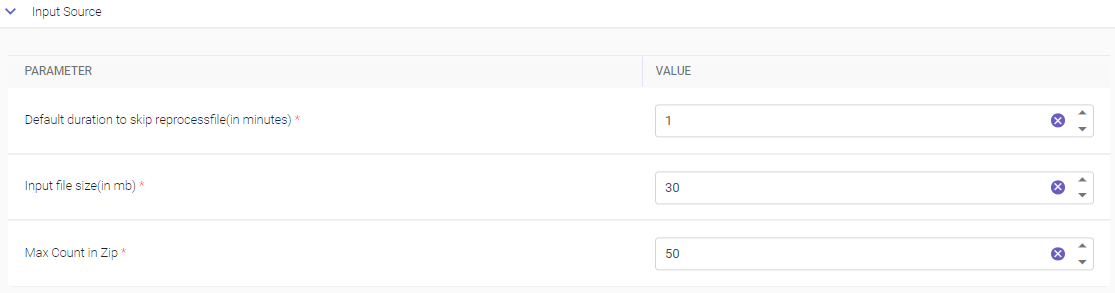
The Input Source settings in TruCap+ provide administrators with the ability to configure default time intervals and file size limits, optimizing the document processing workflow.
|
PARAMETER |
DESCRIPTION |
|---|---|
|
Default duration to skip reprocess file (in minutes)* |
Specify the default time interval in minutes that should elapse before a file is eligible for reprocessing. For instance, if a file has been recently processed, it can be excluded from reprocessing for the specified duration. |
|
Input file size (in MB)* |
Define the file size limit in megabytes (MB) for input files. The default size is 50 MB, and the range allowed is between 1 MB and 500 MB. Note The file size restriction is applicable for document subtype, document uploading, and REST API endpoints. However, it does not apply to TruCap+ Studio and baseline batch processes. |
|
Max count in Zip* |
Specify the maximum number of files permitted within a single ZIP. This parameter helps control the size and complexity of ZIP files. |
|
* Mandatory fields |
|
Knowledge master
The Knowledge Master Settings in TruCap+ determines the specific time of day when the Knowledge Master data is scheduled to be updated automatically.

|
PARAMETER |
DESCRIPTION |
|---|---|
|
Update Knowledge Master data at* |
Specify the time of day when the automatic update of the Knowledge Master data is scheduled to take place. |
Manual handling date format
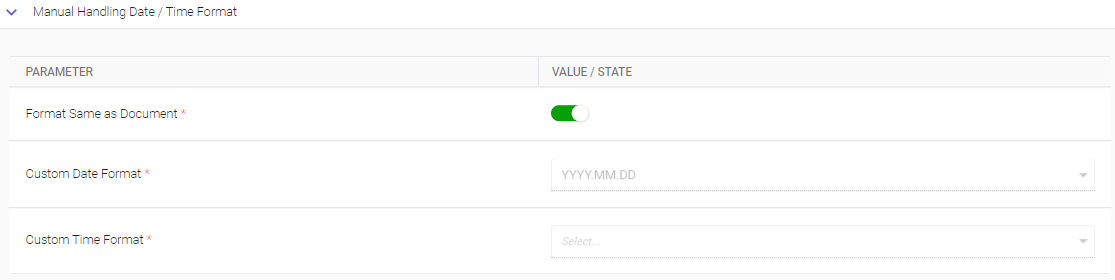
The Manual handling date format settings enable you to customize the date format that appears on the MI screen. By configuring this feature, users can choose between utilizing the date format present in the document itself or defining a custom date format to be displayed on the MI screen.
|
PARAMETER |
DESCRIPTION |
|---|---|
|
Format Same as Document* |
By enabling this option, the date format appearing in the document itself will be utilized on the MI screen. This ensures consistency between the document and the MI screen. When toggling off the option, users gain the ability to define a customized date format for display on the MI screen. |
|
Custom Format* |
If the Format Same as Document option is toggled off, users can input their desired date format in the "Custom Format" field. This format can be customized to specific requirements using the available date formats. |
|
Custom Time Format* |
If the Format Same as Document option is toggled off, users can input their desired time format in the "Custom Time Format" field. This format can be customized to specific requirements using the available time formats. |
|
* Mandatory fields |
|
Manual handling field background color
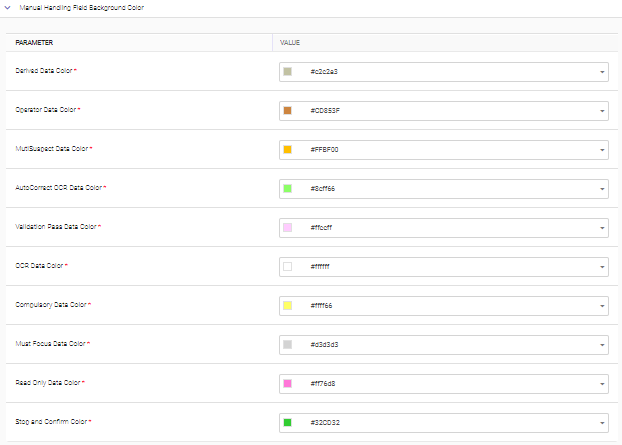
The Manual Handling Field Background Color settings within TruCap+ empower users to enhance visual clarity and streamline manual handling processes by configuring color codes for various extracted field values displayed on the MI (Manual Intervention) screen. These settings enable users to differentiate between different types of field criteria based on their designated background colors, promoting a more intuitive and efficient user experience.
|
PARAMETER |
DESCRIPTION |
|---|---|
|
Derived Data Color* |
Assign a color for derived data fields. |
|
Operator Data Color* |
Assign a color for operator data fields. |
|
MutiSuspect Data Color* |
Assign a color for multi-suspect data fields. |
|
AutoCorrect OCR Data Color* |
Assign a color for auto-corrected OCR data fields. |
|
Validation Pass Data Color* |
Assign a color for fields with data that successfully passes defined validations. |
|
OCR Data Color* |
Assign a color for OCR-recognized data fields. |
|
Compulsory Data Color* |
Assign a color for compulsory data fields. |
|
Must Focus Data Color* |
Assign a color for must-focus data fields. |
|
Read Only Data Color* |
Assign a color for read-only data fields. |
|
Stop and Confirm Color* |
Assign a color for stop-and-confirm data fields. |
|
* Mandatory fields |
|
Changing the color
To change the color, click  a color settings window is displayed as shown below.
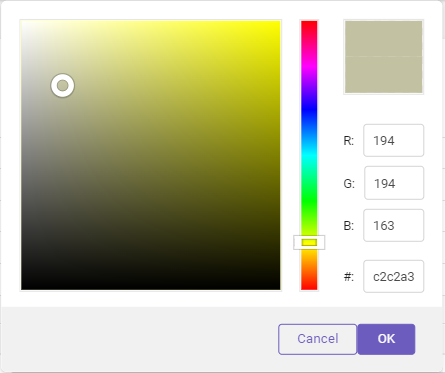
Make the required changes to set the color of your choice and click OK.
Manual intervention
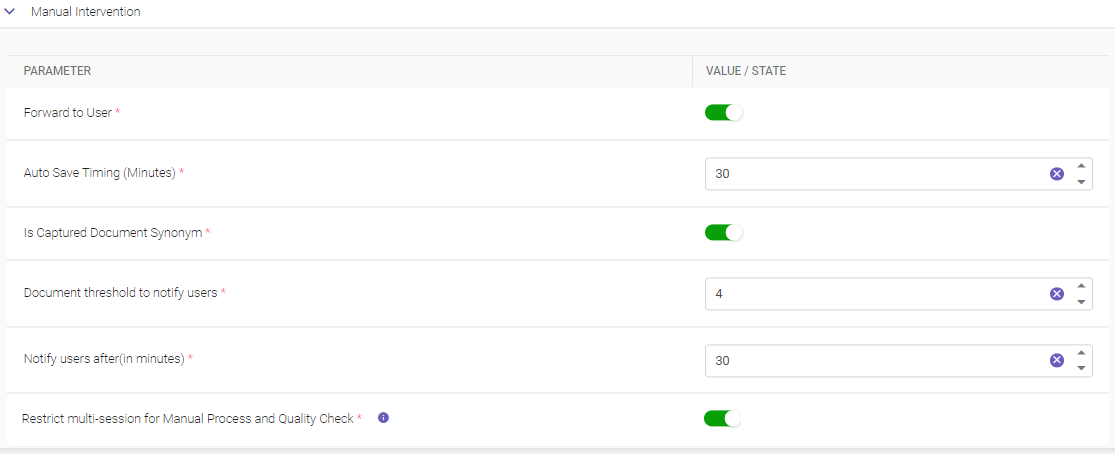
The Manual Intervention Settings within TruCap+ empower users to tailor the manual intervention process by configuring forwarding options, auto-saving time limits, capturing document synonyms, and setting notification thresholds. These settings provide users with enhanced control over manual interventions, optimizing the workflow and ensuring efficient document handling.
|
PARAMETER |
DESCRIPTION |
|---|---|
|
Forward to User* |
Turn on the toggle button to enable users handling manual intervention, QC, or split-merge activities to forward documents to another user. Turning off the toggle button restricts document forwarding. |
|
Auto Save Timing (Minutes)* |
Set the time interval for auto-saving changes made on the MI (Manual Intervention) page. |
|
Enable the toggle button to capture document synonyms, enhancing data accuracy during manual interventions. Note This toggle switch needs to be enabled to view the captured synonyms on Review Keyword page. |
|
|
Document threshold to notify users* |
It serves as an important notification trigger. It denotes the total number of documents allocated to a user. If the number of documents reaches or exceeds the defined threshold, a notification is generated to alert the user. This feature aids in maintaining a balanced workload distribution among users. Set the total number of documents allocated to a user. |
|
Notify users after (in minutes)* |
It complements the document threshold notification by specifying the time difference between consecutive notification messages. If the document threshold remains constant or increases within the specified time frame, users receive timely notifications. This ensures that users stay informed about their document workload and allocation. Set the time interval between notification messages received in minutes if the document threshold remains the same or increases. |
|
Restrict multi-session for Manual Process and Quality Check* |
Enable the toggle button to restrict the opening of multiple documents from the document monitor page awaiting manual inspection and quality check simultaneously. By default this setting is enabled. |
|
* Mandatory fields |
|
Notification
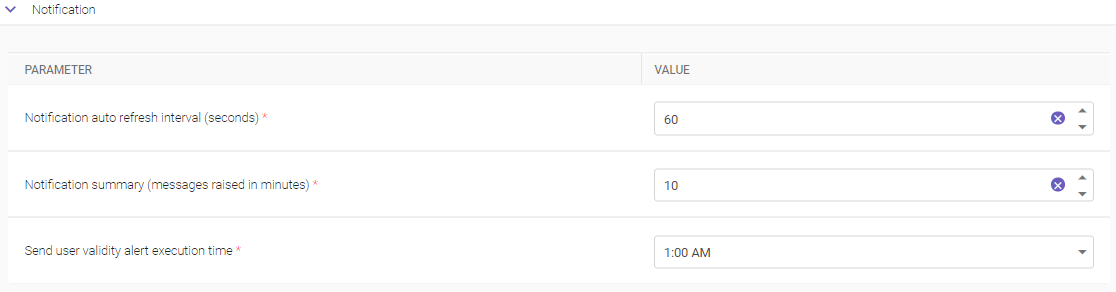
The Notification Settings in TruCap+ empower administrators to tailor the behavior and timing of notifications within the application. By configuring refresh intervals and execution times, organizations can ensure timely communication, efficient response to notifications, and accurate tracking of user account validity.
|
PARAMETER |
DESCRIPTION |
|---|---|
|
Notification auto refresh interval (seconds)* |
Enter the desired time in seconds. This interval determines how often the notifications will be refreshed automatically. |
|
Notification summary (messages raised in minutes)* |
Enter the desired time in minutes. This setting determines the time interval at which notification messages are summarized and presented to users. |
|
Send user validity alert execution time* |
Select the time at which email notifications are sent to users regarding the impending expiry of their account validity. For instance, choosing "7 days" will trigger notifications when there are 7 days left for the account to be deactivated. |
|
* Mandatory fields |
|
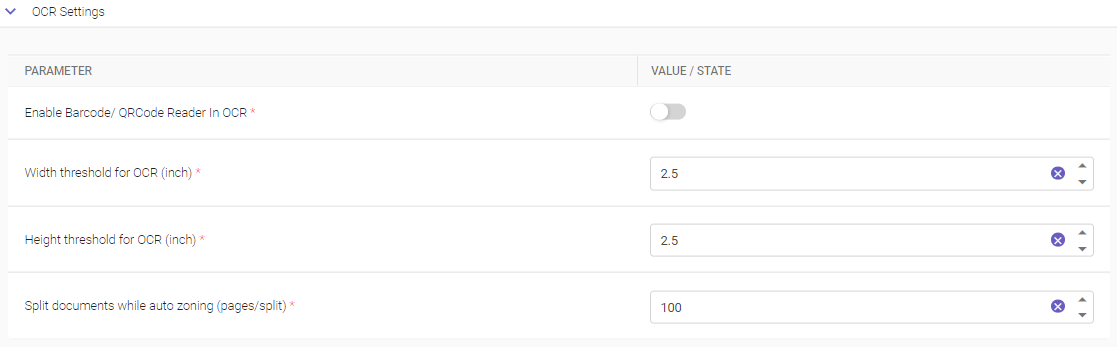
OCR settings
The OCR Settings in TruCap+ provide administrators with the ability to configure various aspects of the Optical Character Recognition (OCR) engine. By fine-tuning these settings, organizations can optimize OCR performance and accuracy to ensure efficient data extraction from documents.
|
PARAMETER |
DESCRIPTION |
|---|---|
|
Enable Barcode/QR Code Reader In OCR* |
Toggle this option to enable the OCR engine to read barcodes and QR codes present in the document. |
|
Width threshold for OCR (inch)* |
Set the maximum width at which OCR should be performed. |
|
Height threshold for OCR (inch)* |
Set the maximum height at which OCR should be performed. |
|
Split documents while auto zoning (pages/split)* |
Define the number of pages that should be split during auto zoning. |
|
* Mandatory fields |
|
Operation dashboard
The Operation Dashboard Settings in TruCap+ empower administrators to customize the behavior of the operation dashboard, providing real-time insights into the status of various processes within the application. By configuring the refresh time interval, administrators can control the frequency at which the operation dashboard updates with the latest information.

|
PARAMETER |
DESCRIPTION |
|---|---|
|
Operation Dashboard Refresh Time (In Seconds)* |
Enter the desired time interval in seconds. This interval determines how frequently the operation dashboard updates with new information. |
|
* Mandatory fields |
|
Output Service
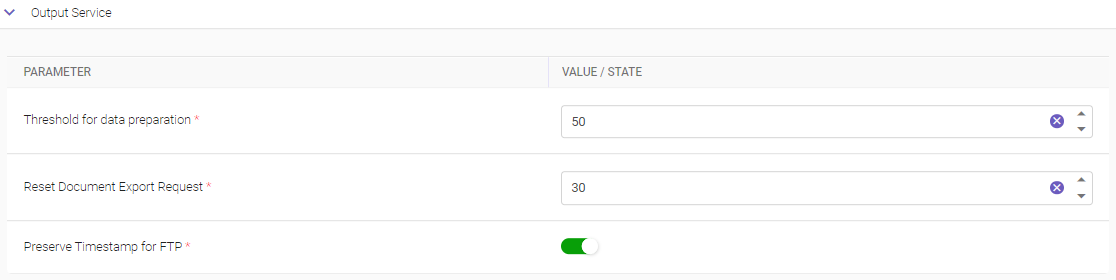
The Output Service Settings in TruCap+ provide administrators with the ability to configure the behavior of the output service, a crucial component of data preparation and delivery. By setting the threshold for the output service and defining timestamp preservation for FTP exports, administrators can tailor the output process to align with their requirements.
|
PARAMETER |
DESCRIPTION |
|---|---|
|
Threshold for data preparation* |
Enter the desired threshold number that determines when the data preparation process should be triggered. |
|
Reset Document Export Request* |
Enter the desired number that allows administrators to define the behavior of document export requests in cases where the export process encounters an issue or needs to be restarted. |
|
Preserve Timestamp for FTP* |
If required, activate the toggle button to retain the original timestamp when exporting data to FTP. |
|
* Mandatory fields |
|
Preprocessing
The Preprocessing Settings in TruCap+ offer users the ability to optimize and streamline the preprocessing stage of document processing. This stage involves crucial steps that prepare documents for further extraction and analysis. By configuring these settings, users can enhance the efficiency of preprocessing activities and improve the performance of subsequent stages.

|
PARAMETER |
DESCRIPTION |
|---|---|
|
Flag to enable DPI conversion* |
By default the toggle button is enabled it ensures that every received document is converted into an image with a standardized resolution of 300 DPI (dots per inch), regardless of the original DPI of the document. This uniform conversion ensures consistent image quality and compatibility with downstream processes. However, if a received document has very low resolution, disabling this toggle switch is recommended. This prevents the conversion from causing undesirable scaling issues, which may negatively impact the performance of OCR engines. |
|
* Mandatory fields |
|
Quality Control
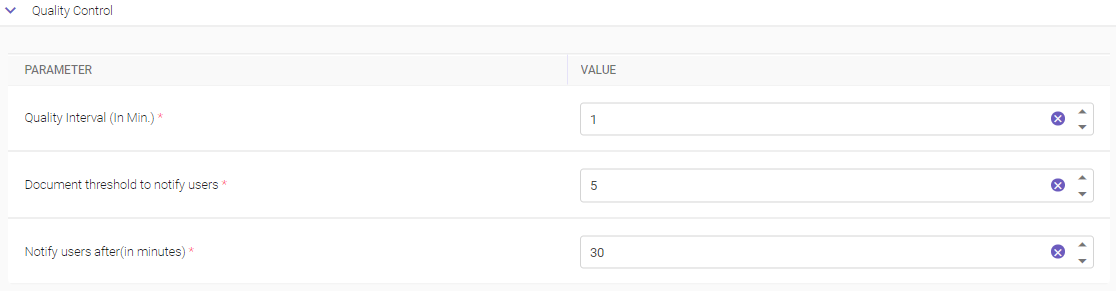
The Quality Control Settings in TruCap+ provide users with the ability to fine-tune and optimize the quality check process, ensuring accurate and reliable results during the document processing journey. These settings empower users to customize the quality check parameters and notification thresholds according to their specific requirements.
|
PARAMETER |
DESCRIPTION |
|---|---|
|
Quality Interval (In Min.)* |
It defines the time interval at which the Quality Check service examines documents awaiting quality control. Users can specify the interval, in minutes, after which the service should initiate the quality check process. This interval can also be utilized for scheduling purposes, ensuring that a list of documents awaiting quality control is systematically and consistently processed. Users can directly input the desired time or use the icon to adjust the value. |
|
Document threshold to notify users* |
It serves as an important notification trigger. It denotes the total number of documents allocated to a user. If the number of documents reaches or exceeds the defined threshold, a notification is generated to alert the user. This feature aids in maintaining a balanced workload distribution among users. Set the total number of documents allocated to a user. |
|
Notify users after (in minutes)* |
It complements the document threshold notification by specifying the time difference between consecutive notification messages. If the document threshold remains constant or increases within the specified time frame, users receive timely notifications. This ensures that users stay informed about their document workload and allocation. Set the time interval between notification messages received in minutes if the document threshold remains the same or increases. |
|
* Mandatory fields |
|
Quality dashboard
The Quality Dashboard Settings in TruCap+ provide users with the ability to enhance the visibility and scope of the quality dashboard by including TruCap+ Studio batch data. These settings empower users to make informed decisions by consolidating essential information from both the TruCap+ Studio batch and the Quality Control (QC) dashboard on a single page.

|
PARAMETER |
DESCRIPTION |
|---|---|
|
Include TruCap+ Studio batch data* |
Enabling this setting allows users to seamlessly integrate information pertaining to TruCap+ Studio batch data into the QC dashboard. The users can access and view details associated with TruCap+ Studio batch data directly from the QC dashboard page. |
|
* Mandatory field |
|
Source identifier
The Source Identifier Settings in TruCap+ provide users with the capability to automate the execution of source identification following document processing. These settings offer an efficient way to seamlessly integrate the source identification process into the workflow, enhancing the accuracy and reliability of document categorization.

|
PARAMETER |
DESCRIPTION |
|---|---|
|
Auto-execute post document processing* |
By enabling this setting, users empower the system to automatically trigger the source identification process immediately after document processing is completed. |
|
* Mandatory field |
|
Split merge
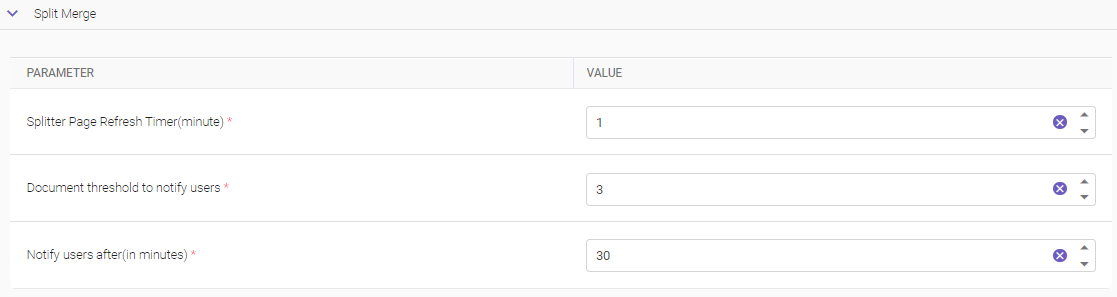
The Split Merge Setting in TruCap+ offers users the ability to customize the page refresh behavior of the Split Merge screen. By configuring the page refresh timer, users can control how often the page updates with new documents while they are on the same page of the Split Merge screen.
|
PARAMETER |
DESCRIPTION |
|---|---|
|
Splitter Page Refresh Timer (minute)* |
This setting allows users to define the interval at which the Split Merge screen refreshes while they are interacting with it. The value entered here represents the duration in minutes between each page refresh. |
|
Document threshold to notify users* |
It serves as an important notification trigger. It denotes the total number of documents allocated to a user. If the number of documents reaches or exceeds the defined threshold, a notification is generated to alert the user. This feature aids in maintaining a balanced workload distribution among users. Set the total number of documents allocated to a user. |
|
Notify users after (in minutes)* |
It complements the document threshold notification by specifying the time difference between consecutive notification messages. If the document threshold remains constant or increases within the specified time frame, users receive timely notifications. This ensures that users stay informed about their document workload and allocation. Set the time interval between notification messages received in minutes if the document threshold remains the same or increases. |
|
* Mandatory fields |
|
TruCap+ studio
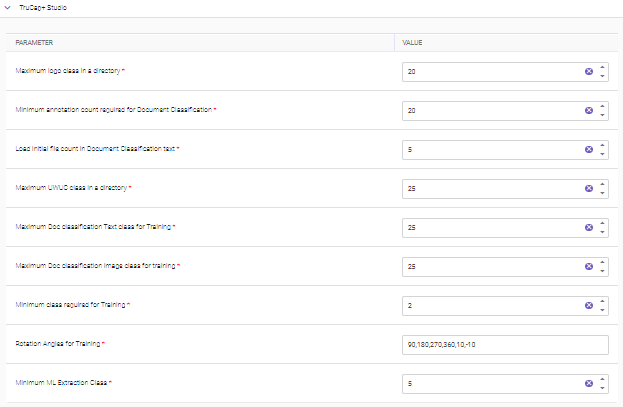
The TruCap Studio Setting in TruCap+ provides advanced configurations for managing Machine Learning (ML) processing and setting up a baselining database to compare and store extracted data between two batches. This feature enhances the capabilities of TruCap+ by enabling users to optimize ML training and data comparison processes.
|
PARAMETER |
DESCRIPTION |
|---|---|
|
Maximum logo class in a directory* |
Specify the maximum number of logo classifications that can be present within a directory. |
|
Minimum annotation count required for Document Classification* |
Specify the minimum number of keyword annotations required for Machine Learning (ML) processing in document classification. This setting ensures that a sufficient number of annotations are provided for effective ML training. Note The minimum number of annotations should not be less than 20. |
|
Load initial file count in Document Classification text* |
Specify the number of files to be initially displayed when loading Document Classification for text. |
|
Maximum UWUC class in a directory* |
Specify the maximum number of User Word Usage Classification (UWUC) classes that can be present within a directory. |
|
Maximum Doc classification text class for training* |
Specify the maximum number of file counts for text classes that can be used during Machine Learning (ML) training in Document Classification. |
|
Maximum Doc classification image class for training* |
Specify the maximum number of file counts for image classes that can be employed during ML training in Document Classification. |
|
Minimum class required for training* |
Specify the minimum number of classes needed for effective model training in the ML process. |
|
Rotation angles for training* |
Specify rotation angles that will be applied to documents during ML training. This feature aids in training models with varied document orientations. |
|
Minimum ML Extraction Class* |
Specify the minimum number of ML extraction class required will be accepted during the ML process. |
|
* Mandatory fields |
|
TruCap API
The TruCap API Setting in TruCap+ empowers users to customize the output date format for JSON file types, enhancing the flexibility and compatibility of data generated through API calls.

|
PARAMETER |
DESCRIPTION |
|---|---|
|
JSON Output Date Format* |
Specify the desired date format for JSON file outputs generated through TruCap API calls. The chosen date format will be applied to the JSON data, ensuring that the date information is presented in a format that aligns with the user's requirements. |
|
* Mandatory field |
|
User Allocation
The User Allocation Settings within TruCap+ empower administrators to establish a timeframe for document allocation to users and automate the deallocation process after a specified number of days. This feature streamlines document management and ensures efficient allocation of tasks among users.

|
PARAMETER |
DESCRIPTION |
|---|---|
|
Deallocate user if document allocated for these many days* |
Specify the maximum number of days a document can remain allocated to a specific user. For example, if a value of "7" is specified, documents allocated to a user will be automatically deallocated if they have been assigned to that user for seven consecutive days. This feature ensures that documents are continually distributed and processed efficiently among available users. |
|
* Mandatory field |
|